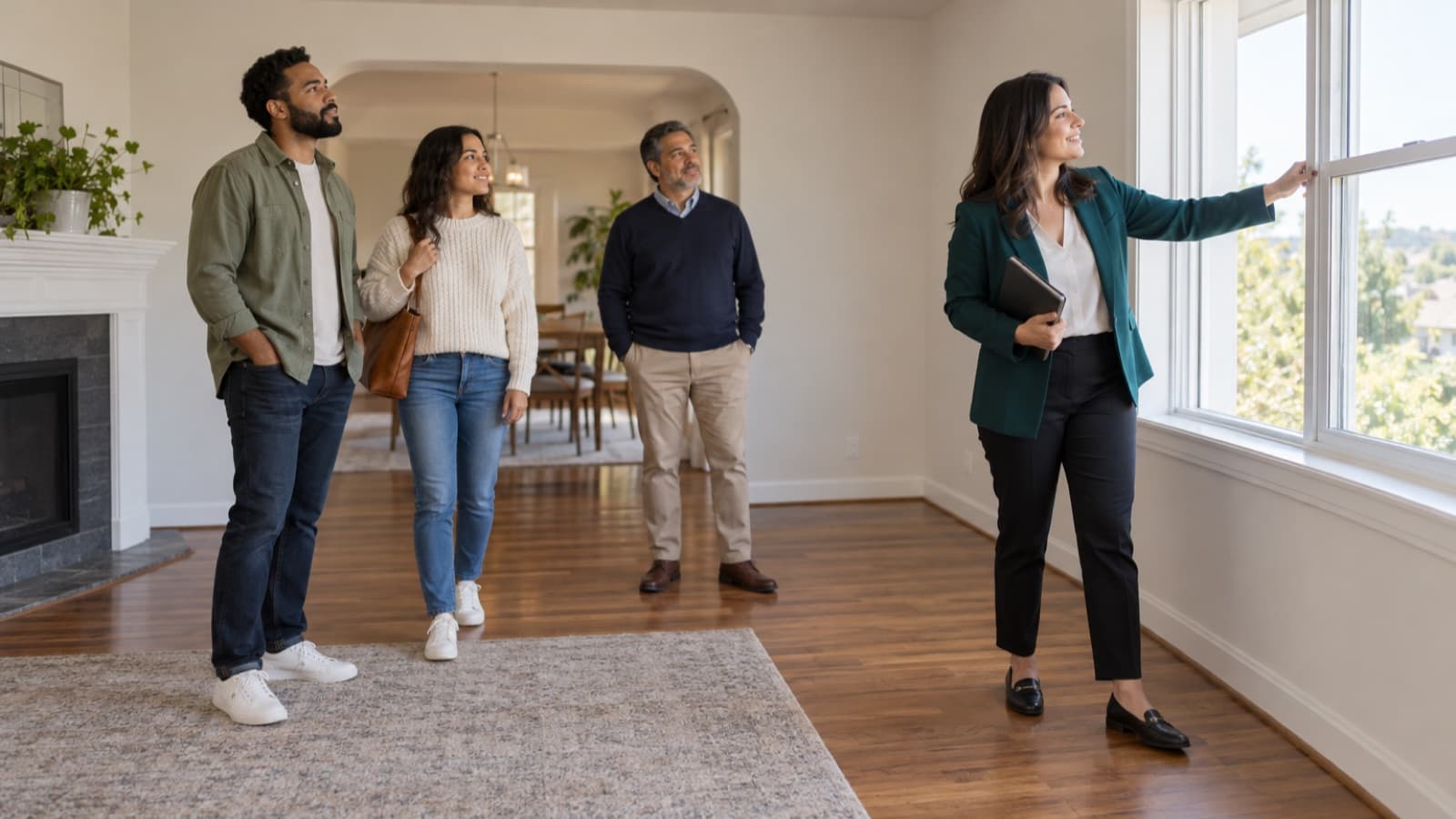

Rental listing video: how to film one with your phone
How to make a rental listing video with your phone: plan the route, film each room steadily, edit in minutes and post it with honest facts.
 By the RentalThread teamHow we write our guides5 min read
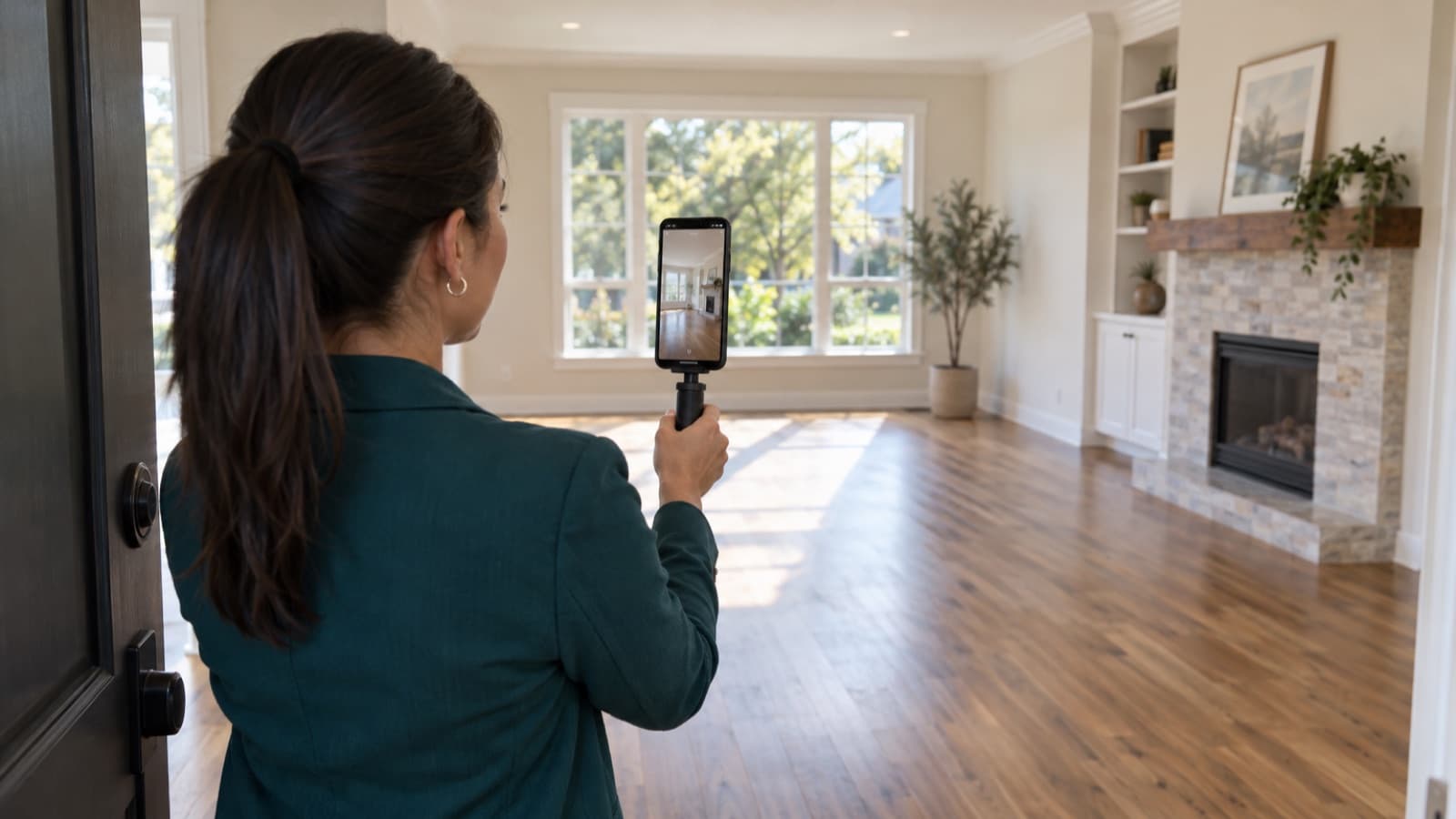
A rental listing video shows what photos can't: how the rooms connect, how much light the living room gets in the afternoon, whether the second bedroom fits a bed and a desk. You don't need a camera crew or desktop editing software. A phone, a plan and fifteen minutes on site can be enough for a clear, honest walkthrough.
This guide is for agents who list rentals. It covers how to plan the shots, how to film steadily, how to edit on the phone, and what to leave out, so the video brings the right people to the visit.
Why a listing video is worth the time
Renters scroll through many listings before they write to anyone. A short video answers questions before they're asked: the layout, the size of the rooms, the view, the noise from the street. People who still book a visit after watching it already know the basics, so fewer visits end with "it's smaller than I thought."
Videos also travel. They play inside WhatsApp chats, social media feeds and many rental portals, so one walkthrough can work across every channel where you advertise the unit.
Why most agents skip it
Time is the main reason. Agents picture a long shoot and an evening of editing, so the video waits until "next time." Then the unit gets photographed in a hurry and the video never happens.
The other reason is bad results. A shaky clip filmed walking fast, with half the rooms dark and the agent's reflection in the bathroom mirror, can do more harm than no video. The fix is a short routine you repeat for every listing.
How to make a rental listing video, step by step
1. Prepare the unit
Prepare it the way you would for photos: clean surfaces, beds made, personal items and clutter put away, toilet lid down, every light on and every blind open. If a tenant still lives there, agree on the day and time with them, give the notice the lease and local rules require, and ask them to put away anything personal or valuable.
Our guide on rental listing photos with your phone covers this preparation in more detail. Shoot the photos and the video on the same visit.
2. Plan the route
Decide the order before you press record. A route that follows how someone would walk through the home is easiest to watch:
- The building entrance or the front door.
- The living room and the main view.
- The kitchen, with appliances and storage.
- Each bedroom, then the bathrooms.
- Laundry, storage, balcony, parking or the yard.
- One shared area of the building, if it has one worth showing.
3. Set up the phone
- Clean the lens. A fingerprint makes the whole video hazy.
- Pick the format. Vertical (9:16) suits WhatsApp status, Instagram Reels and TikTok. Horizontal (16:9) suits many portals and YouTube. If you need both, film both: cropping one into the other cuts off half the room.
- Use the main or wide lens. The ultra-wide (0.5x) shows more but bends straight lines and makes rooms look bigger than they are. If you use it, keep the phone level and away from walls.
- Lock focus and exposure on a mid-bright spot, so the image doesn't flicker when you pass a window.
- Turn on airplane mode so a call doesn't interrupt the take.
4. Film each room steadily
- Hold the phone with both hands, elbows against your body, at chest height.
- Move slowly, slower than feels natural. Take small steps or pan in place.
- Film each room as its own clip of 5 to 10 seconds: start at the doorway, then a slow pan or a few steps in.
- Show what renters ask about: closets open, the inside of the oven, the water heater, the view from the window.
- Keep the phone level. Tilted horizons make the rooms look crooked.
A small handheld stabilizer or gimbal helps, but the phone's own stabilization plus slow movement is usually enough.
5. Edit on the phone
Use a phone editor that can trim, combine and reorder clips. Many phones have one built in, and Instagram and TikTok have their own:
- Trim each clip to the steady part and put them in route order.
- Aim for 30 to 60 seconds for social media. A portal or YouTube version can run a little longer.
- Add short text on screen with facts: rent, bedrooms, size, available date, area.
- Use no music, or music licensed for business use on each platform where you post. A song in a platform's library isn't always cleared for ads or for posting elsewhere, and unlicensed music can get the video muted or removed.
6. Write the caption
The caption carries what the video can't: rent, deposit, what's included, pet policy, available date and how to book a visit. Describe the home, never the tenant you want. Our guide on fair housing words to avoid in rental listings explains why.
If you're writing the caption from scratch, our free rental listing builder can help. It runs in your browser: enter the facts about the home and it builds the listing description, plus the facts people will ask about that it doesn't have yet. With a confirmed waitlist email it also writes a short social caption and a WhatsApp message.
What to leave out
- People. No faces of tenants, neighbors or yourself in mirrors and windows.
- Private details. Mail, documents, family photos, the tenant's belongings, screens.
- Security details. The exact unit number, key boxes, alarm panels and door codes. Share the address after someone books a visit.
- Anything that isn't real. Film the rooms as they are. No filters that change colors or light, no AI-generated rooms or furniture. If you add virtual staging to a photo, label it as staged, and check what the portal and local rules require.
Rules on filming occupied homes, privacy and advertising differ by country and city. Check the rules where the property is, including whether you need the tenant's consent to film an occupied home or publish the footage. Get the owner's written OK too; it doesn't replace the tenant's consent where that's required.
How RentalThread will make it easier
With RentalThread, agents will get AI-written listing descriptions from the facts of the home, which you review and edit before publishing. Each listing will have one link to share on WhatsApp, rental portals and social media, with a QR code for the sign, and every inquiry will land in one inbox. Owners will see the listing's views, visits and feedback without waiting for your weekly call.
See what's planned for agents.
Send it to an owner, manager, agent, tenant or pro who could use it.
Questions, or a topic you'd like us to cover? Write to us at contact@rentalthread.com.